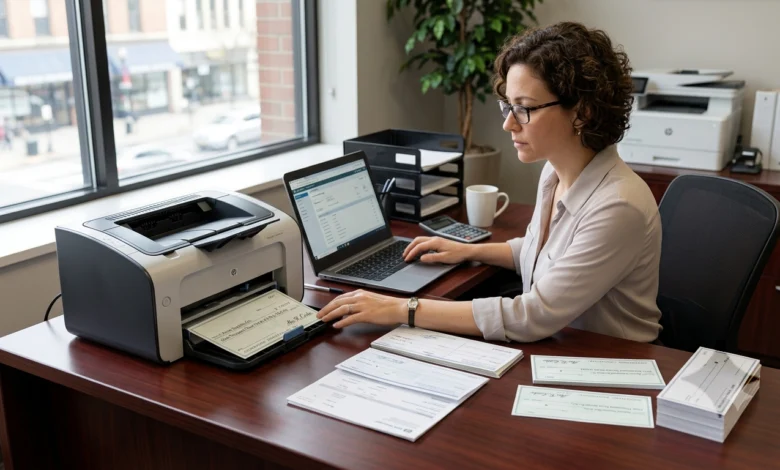
Check printing software helps businesses create checks from a computer and print them through a standard office printer.
It can support vendor payments. Payroll checks. Contractor payments. Customer refunds. Rent. Reimbursements. Insurance payments. Tax payments. Other company expenses.
A basic tool may only place payment details on preprinted stock. A complete platform may also print the MICR line. Manage several bank accounts. Create pay stubs. Import approved payments. Apply signatures. Build Positive Pay files. Mail checks. Record every payment in a searchable register.
The best product depends on how many checks you print. It also depends on whether you need a free tool. Payroll support. QuickBooks integration. Blank stock printing. Multiuser approval. Check mailing. Strong audit controls.
Table of Contents
Best Check Printing Software Options Compared
The products below serve different payment workflows. No option is the best choice for every business.
| Software | Best suited for | Free access | Platform | Blank stock | Payroll use | Main limitation |
|---|---|---|---|---|---|---|
| FreeCheckPrint | Occasional basic checks | Fully free tool | Browser | Yes | Manual payment only | Limited business controls |
| Checkeeper | Small businesses and bookkeepers | 14 day trial | Browser | Yes | Can import payroll payment data | Monthly subscription |
| ezCheckPrinting | Users wanting a one time license | Trial with watermark | Desktop | Yes | Check and stub printing | Advanced integration costs more |
| PrintBoss | QuickBooks and accounting workflows | 30 day trial | Browser and desktop | Yes | Desktop options support payroll workflows | Setup may be more detailed |
| OnlineCheckWriter | Printing and mailing from one platform | 15 day trial | Browser | Yes | Payroll data import available | Pricing depends on plan and transactions |
| CheckPrint | Users needing occasional pay per check access | Free plan with watermark | Browser | Yes | Basic printing only | Production checks may require credits |
Pricing and product features can change. Always confirm the current plan before entering live bank information.
Which Check Printing Software Is Best for Each Use Case
Best Free Option for Occasional Checks
FreeCheckPrint is suitable for a user who wants to create a basic business check without an account or subscription.
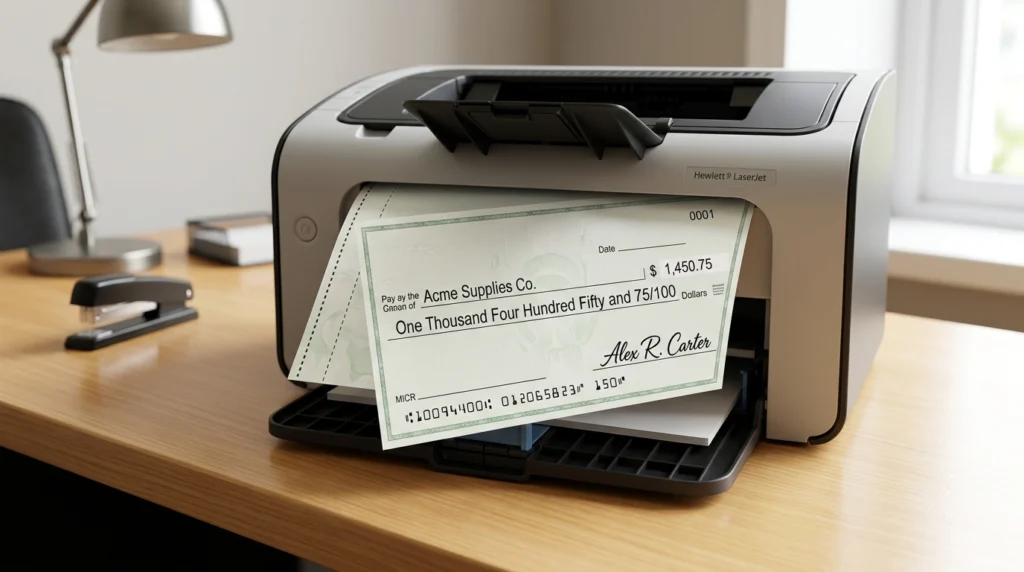
It works through a browser. The user enters business details. Bank details. Payee information. Amount. Date. Memo. The finished check can be printed on compatible plain paper or check stock.
This option is useful when:
- You print very few checks
- One trusted person handles payments
- You do not need accounting integration
- You do not need approval rules
- You do not need a detailed check register
- You do not need payroll calculations
It is not the strongest choice for a growing finance department. It lacks the deeper controls found in paid business check printing software.
Best Browser Based Option for Small Businesses
Checkeeper is suitable for businesses that want to print checks from a browser without installing a desktop program.
It supports blank paper and check stock. It also supports several bank accounts. Check templates. Batch imports. Accounting connections. Check mailing. Searchable payment records.
It may suit:
- Small businesses
- Bookkeepers
- Accountants
- Property managers
- Companies managing several client accounts
- Remote payment teams
The monthly plan includes unlimited check printing and unlimited templates. The main question is whether a recurring subscription offers enough value for the check volume.
Best One Time Purchase Option
ezCheckPrinting is a strong option for users who prefer desktop software and a one time license.
The standard version supports unlimited checks. Unlimited bank accounts. Unlimited companies. Blank stock. Preprinted stock. Logos. Signatures. MICR printing. Several check layouts.
The trial includes the main functions but prints a trial mark. The paid license removes that mark.
It may suit:
- Small companies with one payment user
- Users who want local software
- Businesses that do not want a monthly plan
- Users needing simple batch printing
- Companies with several bank accounts
- Businesses that need recurring checks
QuickBooks and network versions cost more than the standard single user version.
Best Option for QuickBooks and Accounting Systems
PrintBoss is designed for businesses that create payments through accounting software.
It supports QuickBooks. QuickBooks Online. Sage. Microsoft Dynamics. Other accounting applications.
Its stronger functions may include:
- Blank stock printing
- Automatic bank account selection
- Signature rules
- Secure signature records
- Positive Pay files
- ACH files
- Payment archives
- Check mailing
- Multiaccount workflows
- Accounting data imports
PrintBoss Online does not support QuickBooks Online Payroll. Payroll users need an appropriate desktop version.
This distinction should be checked before purchase.
Best Option for Printing and Mailing
OnlineCheckWriter combines check creation with printing and mailing services.
Users can create checks from bank accounts. Print on blank stock. Print on regular paper where supported. Import payroll data. Send payments through a mailing service.
It may suit businesses that want:
- In house check printing
- Check mailing
- Several payment methods
- Payment links
- Vendor payments
- Remote access
- Several bank accounts
- High payment volume
Its pricing can include platform costs and transaction costs. Calculate the total cost using the expected number of checks and mailed payments.
Best Pay Per Check Option
CheckPrint offers a free level with watermarked check files. Users can also buy credits to remove the watermark from production checks.
This approach may suit users who print checks occasionally and do not want a full monthly check printing software plan.
Check the total credit cost if payment volume increases. A monthly product may become more economical after regular use.
Also Read: Collaborate Software Review Features Pricing Use Cases and Setup
What Check Printing Software Does
Check printing software formats bank and payment data into a printable check.
The user normally enters:
- Business name
- Business address
- Bank name
- Bank address
- Routing number
- Account number
- Check number
- Payee name
- Numeric amount
- Written amount
- Payment date
- Memo
- Authorized signature
The system places these details in the correct areas of the selected check template.
Some products create the entire check design. Other products only print payment data on stock that already contains bank information.
How the Check Printing Process Works
A reliable workflow should connect an approved payment with a printed check and an accurate payment record.
The normal process includes:
- Create the company profile
- Add the bank account
- Select the check format
- Enter the starting check number
- Add an authorized signature
- Import or enter payment details
- Review the payee and amount
- Print an alignment test
- Load the correct stock
- Print the check
- Record the check number
- Update the accounting record
- Deliver or mail the payment
- Reconcile the cleared payment
The business should avoid creating checks outside the approved accounting or payroll process.
Free Check Printing Software
Free check printing software can be suitable for basic payment needs.
It is most useful when the business prints a small number of checks and does not need several users or advanced controls.
A free tool may support:
- Manual check creation
- Basic templates
- Plain paper printing
- Check stock printing
- Business information
- Bank details
- Payee information
- Amount and memo fields
A free plan may limit:
- Check volume
- Bank accounts
- Production printing
- Data storage
- Data export
- User permissions
- Payment imports
- Customer support
- Payroll stubs
- Positive Pay files
- Check mailing
- Accounting integration
Free software should not be selected only because it has no subscription fee.
A missing audit record or weak signature control may create a larger cost than a paid plan.
Free Business Check Printing Software
Free business check printing software works best for a simple payment workflow.
A suitable user may have one bank account. One payment user. Low check volume. No payroll requirement. No approval chain.
Before entering real bank information check:
- Whether the check has a watermark
- Whether the file can be printed for real payment
- Whether account data is stored
- Whether stored data can be deleted
- Whether payment records can be exported
- Whether the tool supports the required stock
- Whether the MICR line is printed correctly
- Whether voided checks remain in the history
- Whether the site protects user accounts
- Whether support is available
A trial is not the same as a free production plan.
Some trials provide full access but place a watermark on every printed check. Others allow a limited number of real payments before a subscription is required.
Business Check Printing Software
Business check printing software should manage the payment process and not only the printed page.
Important functions include the following.
Multiple Bank Account Management
Each account should have its own:
- Routing number
- Account number
- Check sequence
- Signature rule
- Template
- Payment history
- Positive Pay format
This matters for companies that manage operating accounts. Payroll accounts. Tax accounts. Client accounts. Separate business entities.
Batch Check Printing
Batch printing creates several checks in one process.
Payment data may come from:
- QuickBooks
- An accounting platform
- A payroll platform
- A CSV file
- An Excel file
- An approved invoice list
- An internal payment system
The software should flag missing payees. Missing amounts. Duplicate payment numbers. Invalid bank selections. Repeated check numbers.
Check Register
The check register should show:
- Check number
- Payee
- Amount
- Date
- Bank account
- Memo
- Creator
- Approver
- Print status
- Void status
- Reprint status
- Cleared status
Search and filters should allow staff to find a payment without reviewing paper records.
Approval Workflow
A business may require one user to prepare a payment and another user to approve it.
Approval may depend on:
- Payment amount
- Bank account
- Department
- Vendor
- Payment type
- User role
A check should not receive a stored signature before the required approval is complete.
Signature Rules
Stored signatures need strict control.
The system should record:
- Who selected the signature
- Which account was used
- Which check received it
- When the check was printed
- Which approval was completed
Signature image files should not remain in a shared folder.
Positive Pay Files
Positive Pay helps a business send issued check details to its bank.
The file may contain:
- Check number
- Issue date
- Amount
- Account
- Payee
The bank compares presented checks with the submitted issue file.
Confirm that the software can create the exact format required by the bank.
Payroll Check Printing Software
Payroll check printing software creates employee checks and pay stubs after payroll has been calculated.
A printing tool is not always a complete payroll system.
A complete payroll platform calculates:
- Regular wages
- Overtime
- Bonuses
- Commissions
- Taxes
- Benefits
- Garnishments
- Other deductions
- Gross pay
- Net pay
The printing tool receives the approved net pay and places it on the check.
A correct workflow includes:
- Import employee hours
- Calculate payroll
- Review payroll exceptions
- Approve payroll
- Create employee checks
- Assign check numbers
- Print checks and stubs
- Record each payment
- Deliver checks
- Reconcile the payroll account
The user should never change only the printed amount. The payroll record must be corrected first.
Payroll Check Features to Compare
Payroll check printing software should support:
- Employee batch printing
- Pay period details
- Gross pay
- Taxes
- Deductions
- Net pay
- Check number tracking
- Void and reprint history
- Payroll data import
- Direct deposit notices
- Department filters
- Employee payment history
A direct deposit notice is not a negotiable check. It is a payment statement for an employee who receives funds electronically.
Blank Stock Versus Preprinted Check Stock
The type of stock affects cost and setup.
Blank Check Stock
Blank stock contains security features but no bank information.
The software prints:
- Business information
- Bank information
- Routing number
- Account number
- Check number
- Payee
- Amount
- Date
- Memo
- Signature
Advantages include:
- One stock type for several accounts
- Easier account changes
- Lower dependence on ordered checkbooks
- Flexible check design
The MICR setup must be accurate.
Preprinted Check Stock
Preprinted stock already contains bank information and the MICR line.
The software prints only the changing payment data.
Advantages include:
- Simpler MICR setup
- Less bank data printed during each run
- Familiar bank supplied formats
Disadvantages include:
- Separate stock for each bank account
- Waste when account information changes
- Higher storage requirements
- Greater risk if unused stock is stolen
MICR Printing Requirements
The MICR line appears near the bottom of the check.
It normally contains the routing number. Account number. Check number. Other processing information.
The routing number must contain nine digits.
When the MICR line is not already printed on the stock it should be printed with compatible magnetic ink or toner according to applicable banking standards.
Only the MICR line needs magnetic printing. The payee. Date. Amount. Memo. Other check details can use normal printer toner or ink.
Businesses should confirm the required format with their bank before printing live checks.
Printer Requirements
Many products work with a standard laser or inkjet printer.
A laser printer may provide more consistent results for large batches.
Test the following items:
- Paper tray selection
- Actual size printing
- Page scaling
- Check position
- MICR alignment
- Signature position
- Amount position
- Stub position
- Print darkness
- Paper feeding
Print on ordinary paper first. Place the test sheet over the check stock. Hold both sheets toward a light source. Confirm that every field aligns correctly.
QuickBooks and Accounting Integration
A useful integration should reduce repeated entry.
For accounts payable the accounting system may send:
- Vendor name
- Vendor address
- Invoice number
- Payment amount
- Payment date
- Bank account
- Memo
- Payment status
The printing software should return:
- Check number
- Print date
- Void status
- Reprint status
- Mailing status
Ask the vendor to demonstrate the complete process.
Do not accept the word integration without checking which fields move between the products.
Security Checklist
Check printing software handles sensitive bank information.
The platform should provide:
- Strong user passwords
- Multifactor authentication
- Role based access
- Approval rules
- Audit history
- Signature controls
- Duplicate check warnings
- Encrypted data
- Secure backups
- Account removal
- Data export
- Positive Pay support
The business should also protect the physical process.
Use these controls:
- Lock unused check stock
- Limit printer access
- Collect printed checks immediately
- Remove former employees
- Review bank activity
- Reconcile accounts
- Void damaged checks
- Record every reprint
- Use secure mailing
- Separate payment creation from approval
How to Choose the Right Product
Choose a Free Tool When
A free product may be enough when:
- You print very few checks
- One person manages payments
- You have one bank account
- You do not need payroll calculations
- You do not need batch imports
- You do not need approval controls
Choose a Browser Based Product When
A browser product may be better when:
- Staff work from several locations
- Bookkeepers manage client accounts
- You need remote access
- You want check mailing
- You want quick setup
- You do not want desktop installation
Choose Desktop Software When
Desktop software may be better when:
- You prefer local data
- You need offline access
- You want a one time license
- You use a supported Windows accounting system
- You need a dedicated payroll printing workflow
Choose an Accounting Focused Product When
An accounting focused platform may be better when:
- Payments start in QuickBooks
- You manage several bank accounts
- You need Positive Pay
- You need signature rules
- You need detailed archives
- You print high payment volume
Cost Comparison Method
Do not compare subscription prices alone.
Calculate the full annual cost:
- Software license
- Monthly subscription
- Per check fee
- Check mailing
- Postage
- Check stock
- MICR toner
- Printer
- Additional users
- Accounting integration
- Payroll integration
- Support
- Setup
- Training
A free tool may cost more when staff enter every payment twice.
A paid product may waste money when the business prints only one check per month.
Setup Checklist
Complete these steps before the first live payment:
- Verify the routing number
- Verify the account number
- Select the correct bank account
- Select the correct stock format
- Enter the starting check number
- Add the correct signature
- Restrict signature access
- Configure approval rules
- Print an alignment test
- Review the MICR line
- Print one low value check
- Confirm that it clears correctly
- Document the workflow
- Create a void procedure
- Create a reprint procedure
- Lock unused stock
- Export the first payment report
- Train every payment user
Common Check Printing Problems
Check Fields Print in the Wrong Position
Confirm the template and paper size.
Disable fit to page when the software requires actual size.
The MICR Line Does Not Scan
Check the routing number. Account number. Font. Magnetic toner. Alignment. Print quality.
Confirm the requirements with the bank.
A Check Number Is Repeated
Stop the print run.
Compare the software register with the physical stock.
Void the incorrect payment record before creating a replacement.
The Signature Does Not Print
Check the user role. Approval status. Signature rule. Selected account. Template.
A Payroll Stub Does Not Match
Return to the payroll record.
Confirm gross pay. Taxes. Deductions. Net pay.
Do not edit only the printed check.
The Import Creates Duplicate Payments
Check the payment identifier. Invoice status. Imported file. Previous batch history.
Test a small batch before importing every payment.
FAQs
What Is Check Printing Software
It is an application that creates and formats checks for printing. It may also manage bank accounts. Check numbers. Signatures. Payment records. Payroll stubs. Accounting imports.
Is Free Check Printing Software Safe
It can be safe for basic use when the provider protects bank data and user access. The user should review storage rules. Account security. Data export. Watermarks. Support. Production limits.
Can I Print a Business Check With a Normal Printer
Many programs support standard laser and inkjet printers. The correct setup depends on the stock and MICR line and bank requirements.
Can I Print Checks on Plain Paper
Some platforms support plain paper printing. Acceptance can depend on the bank and format. Test the process before using plain paper for regular payments.
Do I Need MICR Toner
MICR toner is required when printing a magnetic MICR line under traditional check standards. It is not needed for the payee and date and amount when the MICR line is already preprinted.
Can Business Check Printing Software Connect With QuickBooks
Many products support QuickBooks or QuickBooks Online. The exact connection and payroll support vary by product.
Can Free Business Check Printing Software Print Payroll Checks
A free tool may print an employee payment after payroll is calculated. It may not calculate wages and taxes and deductions.
What Is the Difference Between Payroll Software and Payroll Check Printing Software
Payroll software calculates employee pay. Payroll check printing software formats the approved payment and pay stub.
Can I Print Several Checks at Once
Many paid products support batch imports from accounting systems and payroll systems and spreadsheets.
What Is Positive Pay
Positive Pay allows a business to send issued check details to its bank. The bank can compare a presented check with the approved issue record.
Which Software Is Best for a Small Business
A free browser tool may suit very low volume. Checkeeper may suit browser based printing. ezCheckPrinting may suit a one time desktop purchase. PrintBoss may suit accounting integration. OnlineCheckWriter may suit printing and mailing.
Conclusion
The best check printing software is the product that fits the real payment workflow. A free tool may be enough for occasional checks. Business software is better when the company needs batch printing. Several accounts. Approval rules. Accounting integration. Positive Pay. Detailed records. Payroll check printing software should always use approved payroll data. Compare the products by payment volume. Platform. Stock type. Payroll support. Accounting connection. Security controls. Total cost. Test one low value check before moving regular business payments into the new system.