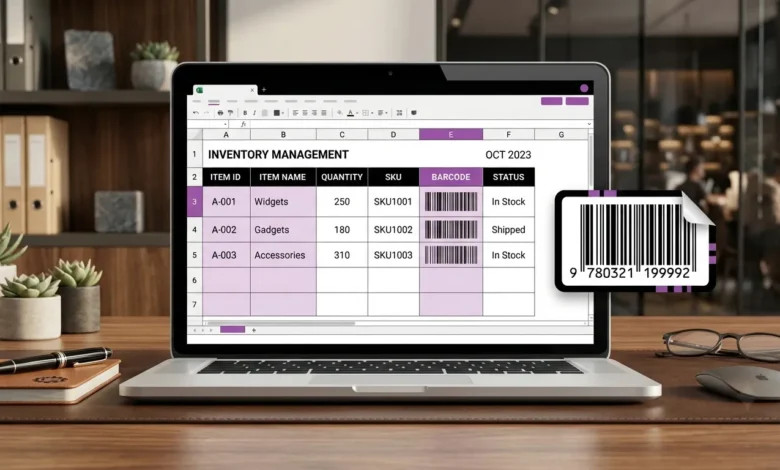
If you handle inventory, price tags, or asset labels, you’ve probably searched “excel barcode generator” to avoid buying expensive software. Good news: you don’t need to buy anything. But here’s something most guides don’t tell you the most common method (using a barcode font) has a catch. The barcode can look perfect on your screen and still fail to scan.
This guide shows you both real methods. It also explains which one to pick, and the exact mistakes that make barcodes stop working.
Table of Contents
Two Ways to Build an Excel Barcode Generator
There are only two methods that actually work:
- Install a barcode font and type your data into cells. Best if you have a big list, like hundreds of products.
- Create the barcode as an image using a free online tool, then paste it in. Best if you only need a few codes.
Both work well. Pick based on how many barcodes you need and whether they must scan correctly on the first try.
Method 1: Using a Barcode Font
Step 1: Download and Install the Font
Code 39 is the free barcode font for Excel most guides use, and most handheld scanners can read it. You can find it on Google Fonts or other barcode font websites. Install it the same way you install any font on your computer. Then close and reopen your spreadsheet program the font won’t show up until you do.
Step 2: Format the Data Column as Text
Before typing anything, click on the column that will hold your codes. Right-click it, choose Format Cells, and set it to Text. Skip this step, and numbers with zeros in front (like 00123) will lose those zeros. This quietly breaks the barcode later, and you won’t notice until it fails to scan.
Step 3: Add Asterisks Around Your Data
Code 39 needs a start and stop symbol to work. That symbol is an asterisk (*). If your product code is in cell B2, type this formula in the next cell:
="*"&B2&"*"
Copy this formula down for every row of data.
Step 4: Turn the Text Into a Barcode
Select the column with your formula. Change its font to Code 39. The text will instantly turn into bars. Make the font bigger too — 24 to 30pt works well so the bars are wide enough to scan after printing.
Why the Barcode Might Not Scan
Most guides skip this part. Here are the reasons a font-based barcode can fail, even when it looks right:
- Wrong font version. “Code 39” and “Code 39 Extended” are two different fonts. Mixing them up makes bars that look fine but scan as the wrong code.
- Font too small. Below 20pt, many scanners can’t read the individual bars clearly.
- Missing asterisks. Skip Step 3, and the barcode has no start or stop point. Most scanners will reject it right away.
- Printer shrinks the page. If your printer’s “fit to page” setting shrinks the sheet, the bars shrink too. Below a certain size, Code 39 stops scanning.
If you’ve done every step correctly and a scanner still won’t read the code, the font method has hit its limit. That’s the time to try Method 2.
Method 2: Create the Barcode as an Image
Instead of using a font which depends on the right install, the right size, and the right print settings all working together — you can make the barcode as a separate image first. Then you just paste it into your sheet like a picture. This skips every problem listed above, because you’re inserting a barcode that’s already tested and ready to scan, not styled text that might break.
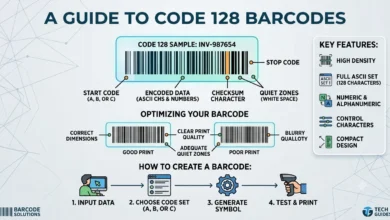
You can make one with our free Barcode Generator. Just pick a barcode type (Code 128, EAN-13, UPC-A, and a few others), type in your data, and download it as an image. Drag that image into your spreadsheet and resize it like any picture.
This is the faster option if you only need a few codes. It also skips the leading-zero problem and the font-mismatch problem completely, since there’s no formula or font involved at all.
Which Excel Barcode Generator Method Should You Use?
| Your Situation | Best Method |
|---|---|
| Big inventory sheet with hundreds of rows | Barcode font (Method 1) |
| Just a few product labels | Image-based generator (Method 2) |
| Codes must scan right the first time | Image-based generator (Method 2) |
| You’re comfortable with formulas and fonts | Either one works |
Common Problems People Run Into
The zeros at the start of a number disappear. This happens when you forget to format the column as Text before typing. Fix it by formatting the column first, then typing the data again.
A formula shows an error after 255 characters. Some formulas that build barcode links online have a character limit and fail without warning. This happens with certain formula-based methods, not the font method above but it’s a common trap if you copy a formula from a random website.
The barcode looks correct, but the scanner reads the wrong value. This almost always means you used the wrong font version. Double-check that you installed the exact font your guide told you to use.
FAQs
Can a spreadsheet make barcodes without installing a font?
Yes. Create the barcode as an image outside the spreadsheet, then paste it in as a picture — that’s Method 2 above. No font needed.
Which barcode font works with the most scanners?
Code 39 works with the widest range of scanners and is the standard choice. Code 128 packs in more data but older scanners don’t always support it.
Can I make barcodes in bulk this way?
Yes, with the font method. Copy the formula and font down as many rows as you need. The image method works better for smaller batches, since each barcode is made one at a time.