An AI image is a picture created or modified with an image-generation system using a written description, reference image, or both. Instead of drawing every element manually, you describe what you want and the system produces a visual result based on those instructions.
The quality of the result depends heavily on the description you provide. A short prompt can produce a basic concept, while details about the subject, environment, lighting, composition, style, and perspective can give you much more control over the final image.
Table of Contents
What Is an AI Image?
An AI image is a digitally generated or modified picture produced through an automated image-generation system.
There are two common ways this works.
Text-to-image creates a new picture from a written description. You might describe a product on a studio table, a realistic landscape, or a fictional character.
Image-to-image uses an existing picture as a starting point and changes selected elements while keeping some characteristics of the original.
This makes image generation useful for both creating new visuals and modifying existing ones.
How to Create an AI Image
Creating an image usually starts with a description rather than a blank canvas.
1. Decide What You Want to Create
Start with the actual subject.
For example:
A modern black sports car parked outside a glass building at night
This establishes the main object but leaves many visual decisions open.
2. Add the Setting
Describe where the subject should appear.
You could specify:
- City street
- Studio
- Beach
- Office
- Mountain landscape
- Futuristic interior
The setting gives the image context and helps determine what appears around the main subject.
3. Describe the Visual Style
If you want a particular appearance, include it in the prompt.
You can specify whether you want the result to look:
- Photorealistic
- Cinematic
- Minimal
- Editorial
- 3D rendered
- Hand-drawn
- Watercolor
- Product photography
4. Control the Composition
Composition tells the system how the scene should be presented.
Useful details include:
- Close-up
- Wide shot
- Portrait view
- Front-facing
- Side view
- Overhead view
- Centered subject
- Background blur
5. Generate and Refine
The first result does not always match the intended concept.
Instead of completely changing the prompt, identify the problem and modify that specific part.
For example, if the subject looks correct but the background is wrong, change the background instructions rather than rewriting the entire description.
Also Read: Chai AI: What It Is, How It Works, and How to Use It
How to Write a Better Image Prompt
A useful prompt normally contains several connected details:
Subject + setting + appearance + lighting + composition + style
For example:
A small white coffee shop on a rainy city street, warm interior lighting, reflections on wet pavement, cinematic photography, wide-angle view, realistic details.
This gives the image generator considerably more information than:
Coffee shop in the rain.
Specificity is useful when you have a particular visual result in mind.
What Details Should You Include?
Subject
Explain exactly what should appear.
Instead of:
A car
try:
A silver electric sedan with a minimalist exterior
Environment
Describe the surroundings.
Instead of:
In a city
try:
On a busy downtown street surrounded by modern glass buildings
Lighting
Lighting can significantly change the appearance of a scene.
Examples include:
- Soft morning light
- Golden-hour sunlight
- Studio lighting
- Neon lighting
- Low-key lighting
- Overcast daylight
Camera or Viewpoint
If supported by the tool, specify how the scene should be viewed.
For example:
Close-up portrait, eye-level camera, shallow depth of field.
Composition
You can tell the system where the main subject should appear.
For example:
Subject centered in the frame with a large amount of negative space on the right.
This can be particularly useful for website banners, advertisements, and social media graphics where text needs room.
Can You Edit an Existing Image?
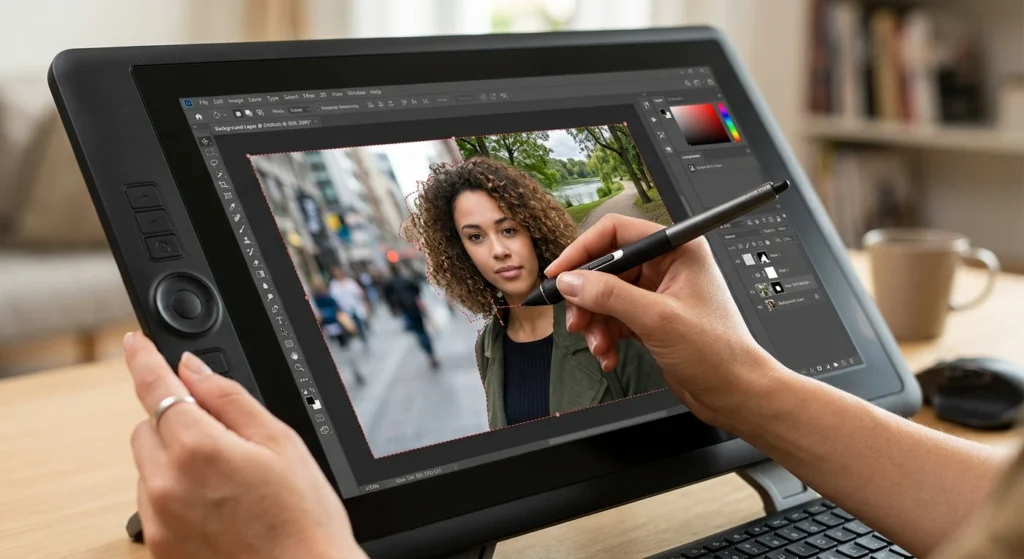
Yes. Image editing is another common use of image-generation tools.
Instead of creating an entirely new picture, you can provide an existing image and request a specific change.
Common edits include:
- Removing an unwanted object
- Replacing a background
- Changing clothing
- Adjusting colors
- Adding an object
- Expanding the image
- Changing the visual style
- Improving composition
For the best result, describe what should change and what should remain unchanged.
For example:
Replace the background with a clean white studio backdrop while keeping the product, shape, position, and lighting unchanged.
That is more precise than simply asking for a “better background.”
How Do You Get More Realistic Results?
Realistic images usually benefit from concrete visual details rather than vague descriptions.
Mention the characteristics that matter to the scene.
For a product image, this could include:
Studio product photography, soft directional lighting, realistic material texture, subtle shadows, clean background, sharp focus.
For a portrait:
Natural skin texture, soft window light, realistic facial proportions, shallow depth of field, eye-level portrait.
The goal is not to make the prompt unnecessarily long. The goal is to include the details that actually control the desired result.
Why Do Generated Images Sometimes Look Wrong?
Generated images can contain visual errors.
Common problems include:
- Incorrect hands or fingers
- Distorted objects
- Unnatural facial features
- Incorrect proportions
- Random background elements
- Misspelled text
- Inconsistent characters
- Objects appearing in the wrong position
These problems are especially noticeable when an image contains detailed text, multiple people, or complicated objects.
If one element is incorrect, refine that particular instruction instead of adding unrelated details to the prompt.
See Also: Candy AI What It Is How It Works and What to Know Before Using It
How to Fix an Unwanted Result
A practical refinement process is:
Identify the problem → describe the correction → regenerate → compare the result
Suppose the image contains the correct product but the background is too busy.
Instead of changing the entire prompt, add something such as:
Clean minimal background with no additional objects.
If the subject is too far away:
Medium close-up with the subject occupying most of the frame.
Small, targeted changes often make the refinement process easier to control.
Can AI Images Be Used for Business?
Generated visuals can be useful for many commercial projects, including:
- Product concepts
- Website graphics
- Blog illustrations
- Advertising concepts
- Social media visuals
- Presentation graphics
- Marketing mockups
- Creative direction
However, the right to use an image depends on the specific platform’s terms and the material included in the image.
If an image contains recognizable brands, copyrighted characters, logos, or identifiable people, additional considerations may apply.
Do not assume that an image being generated automatically means it can be used without restrictions.
AI Image vs Traditional Image Creation
The main difference is how the visual is produced.
Traditional image creation generally requires manual work through photography, illustration, graphic design, 3D modeling, or image-editing software.
Image generation allows the user to describe a concept and produce visual variations much faster.
That makes it particularly useful during the idea and concept stage, where testing several visual directions can be more practical than manually producing each version.
What Makes a Good Generated Image?
A good result is not simply the most detailed image.
It should match the purpose for which it was created.
For a product advertisement, accurate product appearance may matter more than an elaborate background.
For a website hero image, composition and empty space for text may be more important.
For a portrait, facial consistency and realistic proportions may matter most.
Therefore, the best prompt depends on the intended use of the image.
FAQs
What is an AI image?
An AI image is a picture generated or modified using an image-generation system based on text instructions, reference images, or both.
How do I create an AI image?
Choose an image-generation tool, describe the subject and scene, add relevant visual details, generate the result, and refine the prompt when necessary.
What should I include in an image prompt?
Describe the subject, setting, visual style, lighting, composition, viewpoint, and important details that affect the result.
Can I edit an existing photo?
Yes. Depending on the tool, you can remove objects, replace backgrounds, change elements, expand the image, or apply different visual styles.
Why do generated images sometimes have incorrect hands or text?
Complex visual details can be difficult for image-generation systems to reproduce accurately. Refining the prompt or editing the affected area can improve the result.
Can generated images be used commercially?
Potentially, but usage rights depend on the platform’s terms and the content of the image. Check the relevant licensing conditions before using an image commercially.
How can I make an image look more realistic?
Use specific descriptions for lighting, materials, camera perspective, shadows, textures, and composition instead of relying on broad style terms alone.
Conclusion
Creating an AI image is less about writing the longest possible prompt and more about giving clear instructions for the visual details that matter.
Start with the subject, define the environment, add the desired style and lighting, control the composition, and then refine the result based on what is wrong.
For existing pictures, targeted editing instructions can change individual elements without rebuilding the entire scene. The most effective approach is to treat the first result as a starting point and make focused adjustments until it matches the intended use.