
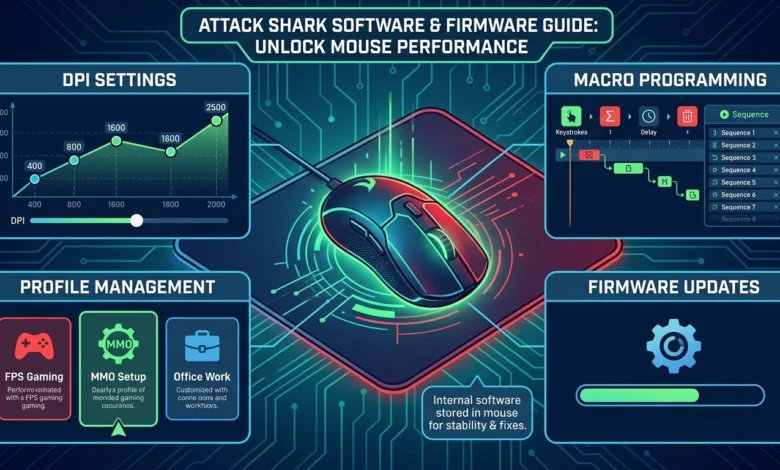
Gamers often search for Attack Shark software after purchasing a new gaming mouse to customize DPI settings, update firmware, create profiles, or improve overall performance. Whether you own an Attack Shark X3 or another compatible model, installing the correct software helps unlock customization options that are not available through hardware controls alone.
This guide explains which Attack Shark devices support the official configuration utility, how it works, the difference between software, firmware, and drivers, and the best practices for installation, customization, troubleshooting, and performance optimization.
Table of Contents
What Is Attack Shark Software?
This software is the official configuration utility for compatible Attack Shark gaming mice. It allows users to customize device settings through a centralized interface instead of relying only on factory defaults.
Depending on the supported model, users can configure:
- DPI sensitivity levels.
- Polling rate.
- Button remapping.
- Macro assignments.
- User profiles.
- Firmware updates.
- RGB lighting options.
These settings help users create different profiles for gaming, office work, content creation, or everyday use without manually changing the mouse configuration each time.
Attack Shark Software vs Firmware vs Driver
Although these terms are often used together, they perform different functions during device setup.
Software
The configuration utility allows users to customize supported gaming mice, create profiles, adjust performance settings, and install firmware updates.
Firmware
Firmware is the internal program stored inside the mouse. Updating firmware can improve stability, compatibility, tracking accuracy, and overall device performance.
Driver
A driver enables Windows to communicate correctly with the hardware. In most cases, Windows installs the required driver automatically, while the configuration utility provides access to advanced customization features.
Understanding these differences helps users install updates correctly and avoid confusing firmware upgrades with software installation.
Also Read: HyperX Software: Complete Guide to NGENUITY, HyperX QuadCast Software & Device Setup
Which Devices Support the Official Utility?
Compatibility depends on the mouse model and installed firmware. Commonly supported devices include:
Attack Shark X3
Supports DPI customization, polling rate adjustment, macro programming, firmware updates, and profile management.
Attack Shark X3 Pro
Provides similar customization features while supporting performance tuning and firmware management.
Attack Shark X3 Max
Offers profile customization, firmware support, and advanced performance settings for compatible versions.
Attack Shark X6
Allows users to configure supported settings, manage multiple profiles, and optimize tracking performance.
Attack Shark X11
Selected versions support profile management, DPI adjustment, firmware updates, and other customization features through the official utility.
Before downloading any software, users should always verify that their specific model appears on the official compatibility list to ensure full feature support.
Features Explained
One reason has become popular among gaming enthusiasts is the level of control it provides over supported devices. Instead of using default hardware settings, users can tailor mouse performance for different games, creative work, or everyday productivity.
Key features commonly available include:
DPI Customization
Multiple DPI profiles allow users to switch between precision movements and faster cursor speeds depending on the task being performed.
Polling Rate Adjustment
Supported devices allow polling rate configuration to improve responsiveness during competitive gaming while balancing system performance.
Macro Programming
Frequently used commands can be assigned to programmable buttons, reducing repetitive actions during games or professional workflows.
Profile Management
Users can create separate profiles for different games, applications, or work environments and switch between them whenever needed.
Firmware Updates
The software also provides firmware management for supported devices, helping improve compatibility, stability, and long-term performance through official updates.
Attack Shark X3 Software Guide
One of the most searched topics related to is Attack Shark X3 software. Many users purchase the Attack Shark X3 because of its lightweight design and high-performance sensor, but they often want to know which software should be installed, what settings can be customized, and whether firmware updates are necessary.
The X3 software allows compatible users to configure the mouse beyond its factory settings. Instead of using default values, users can create personalized profiles that match different games, applications, or work environments.
Does Attack Shark X3 Require Software?
The Attack Shark X3 functions as a standard mouse immediately after being connected to a computer, but installing it unlocks additional customization features.
These include:
- DPI profile customization.
- Polling rate adjustment.
- Button remapping.
- Macro programming.
- Profile management.
- Firmware updates.
Although the mouse can be used without installing the software, users who want maximum performance generally install the official utility to access these additional controls.
Customizing the Attack Shark X3
After installing Shark X3 software, users can create multiple profiles for different situations.
For example:
- Low DPI for photo editing.
- Medium DPI for everyday office work.
- High DPI for fast-paced gaming.
- Separate button layouts for productivity applications.
Saving multiple profiles makes switching between activities much faster without manually adjusting settings every time.
Updating Firmware
Firmware updates improve compatibility, correct reported issues, and may enhance overall device stability.
Before updating firmware:
- Connect the mouse directly through USB.
- Avoid disconnecting the device.
- Close unnecessary applications.
- Wait until the update finishes completely.
Interrupting firmware installation can lead to temporary device detection issues.
How to Download and Install it Safely
Downloading this software from trusted sources helps reduce compatibility problems while ensuring that firmware files remain authentic.
Step 1 — Download the Official Software
Visit the official Attack Shark support or download page and locate the software designed for your exact mouse model.
Always verify:
- Mouse model.
- Firmware version.
- Operating system compatibility.
Step 2 — Install the Software
Run the installer and follow the installation instructions.
Restart Windows if required before opening the application.
Step 3 — Connect the Mouse
Connect the mouse directly to the computer.
Avoid using USB hubs during the initial setup because some devices may not be detected correctly.
Step 4 — Allow Device Detection
Launch and wait while it scans for compatible devices.
If the mouse appears successfully, review available firmware updates before changing any settings.
Step 5 — Save Your Profile
After customizing DPI, polling rate, macros, and button assignments, save the profile so settings remain available after restarting the computer.
Attack Shark Software Not Detecting Your Mouse?
One of the most common issues reported by users is that it cannot detect the connected mouse. Fortunately, most detection problems can be resolved through a few basic checks.
Confirm Device Compatibility
Verify that your mouse model supports the installed version. Installing software designed for another model may prevent successful detection.
Check the USB Connection
Reconnect the mouse directly to another USB port instead of using a USB hub or extension cable.
Restart the Software
Close software, disconnect the mouse, restart the computer, reconnect the device, and launch the application again.
Update Firmware
If the mouse is detected but behaves unexpectedly, installing the latest official firmware may resolve compatibility or stability problems.
Reinstall the Software
Corrupted installation files occasionally prevent proper communication between Windows and supported devices. Reinstalling the software often resolves this issue while restoring normal operation.
Following these troubleshooting steps resolves many common detection problems without requiring hardware replacement.
Common Problems and Fixes
Although this is designed to simplify mouse customization, users may occasionally encounter issues during installation, firmware updates, or daily use. Most of these problems can be resolved with a few troubleshooting steps before considering hardware replacement.
DPI Settings Not Saving
If custom DPI levels return to their default values after restarting the computer, reopen, confirm that the correct profile is selected, and save the configuration again. Updating the software and firmware may also resolve profile synchronization issues.
Firmware Update Failed
Firmware updates should never be interrupted. If the process fails, reconnect the mouse using a direct USB connection, restart the computer, reopen, and repeat the update using the official firmware package.
RGB Lighting Not Working
Some Attack Shark models support RGB customization while others do not. Verify that your mouse includes RGB lighting before troubleshooting. If supported, check whether lighting has been disabled within or whether a firmware update is available.
Profiles Missing After Restart
If saved profiles disappear, export or back up your preferred settings after making configuration changes. Keeping the latest version that helps to reduce profile-related issues.
Unexpected Mouse Disconnects
Random disconnections are often related to low battery levels, unstable wireless connections, outdated firmware, or USB receiver placement. Connecting the receiver directly to the computer instead of through a USB hub can improve connection stability.
Tips to Improve Attack Shark Mouse Performance
Installing software is only one part of optimizing a gaming mouse. Proper configuration can improve responsiveness, tracking accuracy, and overall user experience.
For better performance:
- Keep updated to the latest version.
- Install official firmware updates whenever available.
- Use a polling rate that matches your gaming style and system capabilities.
- Create separate DPI profiles for gaming, office work, and creative applications.
- Back up custom profiles before resetting the software.
- Clean the mouse sensor regularly to maintain accurate tracking.
- Position the wireless receiver close to the mouse for a stronger connection.
These maintenance practices help maximize performance while extending the reliability of supported Attack Shark devices.
FAQs
What is Attack Shark software?
This is the official configuration utility for supported Attack Shark gaming mice. It allows users to customize DPI settings, polling rate, button assignments, macros, firmware, and device profiles.
Is this software free?
Yes. it is available free of charge for compatible devices and should always be downloaded from the official Attack Shark support website.
Does Attack Shark X3 require software?
The mouse works without additional software for basic use. However, installing Attack Shark X3 software provides access to advanced customization features such as DPI profiles, macro programming, firmware updates, and polling rate adjustments.
Can this run on Windows 11?
Yes. Recent versions of support Windows 10 and Windows 11, provided the connected mouse is listed among the officially supported devices.
Conclusion
Attack Shark software provides a practical way to customize supported gaming mice through DPI adjustments, polling rate configuration, firmware updates, macro programming, and profile management. Whether you are setting up a new device or fine-tuning an existing one, using the official software helps unlock features that are not available through default hardware settings.
For users configuring the X3 model, Attack Shark X3 software offers additional control over performance profiles and device customization. Keeping both the software and firmware updated, following recommended installation steps, and applying the troubleshooting solutions discussed in this guide will help ensure reliable performance and a smoother gaming experience over the long term.