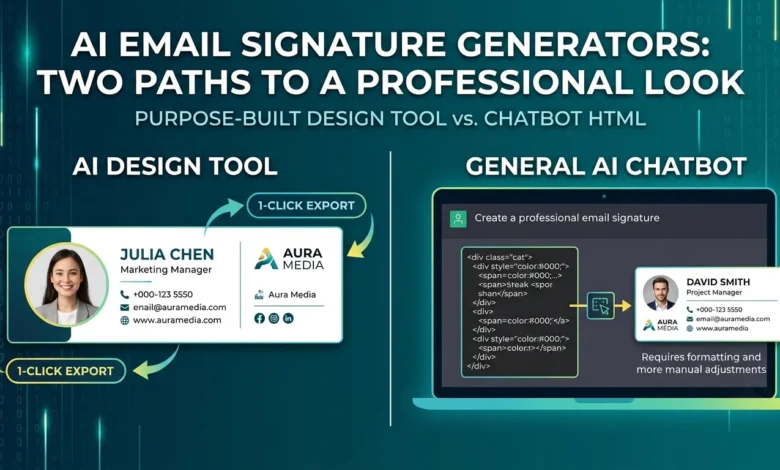
“AI email signature generator” gets used two different ways, and mixing them up is where most people run into trouble. It can mean a purpose-built tool that uses AI to design and arrange your signature automatically. Or it can mean asking a chatbot like ChatGPT to write one for you from scratch. Both work, but they solve different problems.
This guide covers both approaches, including a step most people miss when using ChatGPT the code it gives you can’t just be pasted straight into Gmail.
Table of Contents
Two Types of AI Email Signature Generators
Purpose-built AI design tools. You type a short prompt, like “clean, modern signature for a marketing manager,” and the tool arranges your name, title, contact details, and logo into a finished layout automatically. This is the fastest option if you want something polished without touching any code.
General AI chatbots, like ChatGPT. You describe what you want, and the chatbot writes out a signature, sometimes as plain text, sometimes as raw HTML code. This is flexible and free, but it comes with an extra step most people don’t expect.
How to Create a Signature With ChatGPT
- Give ChatGPT your details: name, title, company, phone, email, website, and any social links.
- Ask for a clickable HTML signature with inline styling, and mention that it needs to work in Gmail and Outlook.
- ChatGPT returns HTML code, not a finished visual signature.
- Paste that code into an HTML renderer or a blank webpage, not directly into Gmail’s signature box.
- Copy the rendered, formatted version, and paste that into your email client’s signature settings.
If you’d like to use a free email signature generator, try this.
Why You Can’t Just Paste ChatGPT’s Code Into Gmail
This is the part that trips people up. ChatGPT gives you raw HTML source code. Think of it as instructions for how a signature should look, not the signature itself. Paste that code directly into Gmail or Outlook’s signature box, and you’ll just see the code as plain text, tags and all. It won’t look like a real signature.
To fix this, the code needs to be rendered first. Paste it into an HTML viewer, a blank document that supports HTML rendering, or a simple online HTML sandbox. Once it displays correctly there, copy the rendered result. Paste that into your email client instead. This extra step is exactly what a purpose-built generator skips, since it outputs something already formatted and ready to paste.
What AI Design Tools Add That ChatGPT Doesn’t
Purpose-built AI signature tools handle a few things automatically that take extra manual work with a chatbot:
- Layout balancing. The tool arranges text, logo, and links into a proportioned design without you adjusting spacing by hand.
- Client compatibility. Output is pre-tested to display correctly in Gmail, Outlook, and Apple Mail, avoiding the rendering step ChatGPT requires.
- AI headshot generation. Some tools can generate a professional headshot from a few selfies and drop it directly into the signature, useful if you don’t have a polished photo on hand.
- One-click export. You get a signature ready to copy and paste immediately, with no code to view or convert.
When to Use Which Approach
Use a dedicated AI generator if: you want a finished, ready-to-paste signature without any extra steps or code handling.
Use ChatGPT if: you’re comfortable with the extra rendering step, want full control over custom wording, or are experimenting with a specific design idea before finalizing it.
Example ChatGPT Prompt That Works
If you’re going the chatbot route, a vague request like “make me a signature” produces something generic. A structured prompt gets much better results:
Create a clickable HTML email signature with these details:
Name: [Your Name]
Job Title: [Your Title]
Company: [Company Name]
Email: [Your Email]
Phone: [Your Phone]
Website: [Your Website]
LinkedIn: [Your LinkedIn URL]

Use inline CSS, keep it compatible with Gmail and Outlook,
and make it mobile-friendly.
The more specific the prompt, the less back-and-forth editing you’ll need afterward.
Also Read: Student Email Signature Generator, Teachers, and Real Estate Agents
Common Mistakes
Pasting raw HTML directly into an email client
As covered above, this shows the code as text instead of a formatted signature. Render it first.
Assuming AI-generated signatures are automatically mobile-friendly
Test on a phone before rolling out a new signature widely, regardless of which method you used to create it.
Skipping a final proofread
AI tools occasionally misformat a phone number or drop a character from a link. Check every field before using the signature.
FAQs
What is an AI email signature generator?
It’s a tool that uses AI to automatically design and format an email signature based on your details or a short prompt, without you manually arranging text, spacing, or code.
Can ChatGPT create an email signature?
Yes. ChatGPT can write both plain text and HTML signatures, though HTML output needs to be rendered before it will display correctly in an email client rather than showing as raw code.
Why does my ChatGPT signature look like code instead of a formatted signature?
You likely pasted the raw HTML directly into your email client. Paste it into an HTML renderer first, copy the formatted result, and paste that instead.
Is an AI email signature generator free?
Many are, including ours. Free AI-powered tools typically cover standard formatting and design, with some offering paid upgrades for advanced customization or headshot generation.
Do AI-generated signatures work in Gmail and Outlook?
Yes, as long as the output is properly rendered HTML rather than raw code. Purpose-built generators handle this automatically.
Can an AI generator create a signature that matches my brand colors?
Yes. Most AI design tools let you specify exact colors, either by typing a hex code or describing your brand’s palette in the prompt itself.
Is it safe to give an AI tool my contact information?
Reputable signature generators only use your details to build the signature itself. Check a tool’s privacy policy if you’re sharing sensitive information like a direct phone line, and avoid pasting anything you wouldn’t want stored by a third party.
Conclusion
Choosing the right AI email signature generator comes down to balancing speed and convenience against custom control: purpose-built design tools deliver a polished, ready-to-use signature in seconds without dealing with code, while general chatbots like ChatGPT offer full flexibility for free but require you to render the raw HTML code in a viewer before copying the visual result into your email client. Regardless of which method you select, taking a minute to proofread your details and test the final signature on mobile devices will ensure a clean, reliable, and professional appearance across all email platforms.