Looking for real email signature examples to copy, or a tool that builds one for you? This guide covers both. You’ll find professional, business, and personal signature examples below, plus a tool that fills in your details and formats everything for you. It also covers when to use HTML versus plain text, and how free and paid tools actually differ.
Table of Contents
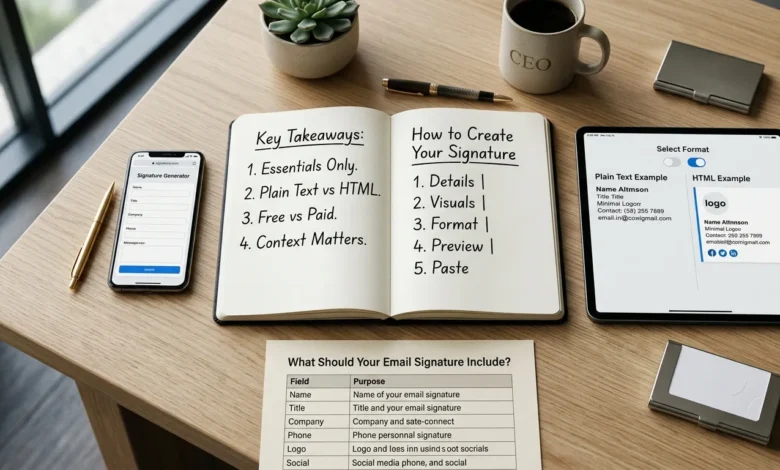
Key Takeaways
- A good signature needs only a handful of fields: name, title, company, and one way to reach you.
- Plain text and HTML each suit different situations. Neither is universally correct.
- Free tools cover most individual needs. Paid tools matter mainly for teams.
- Personal, business, and corporate signatures differ in tone and required fields, not in basic structure.
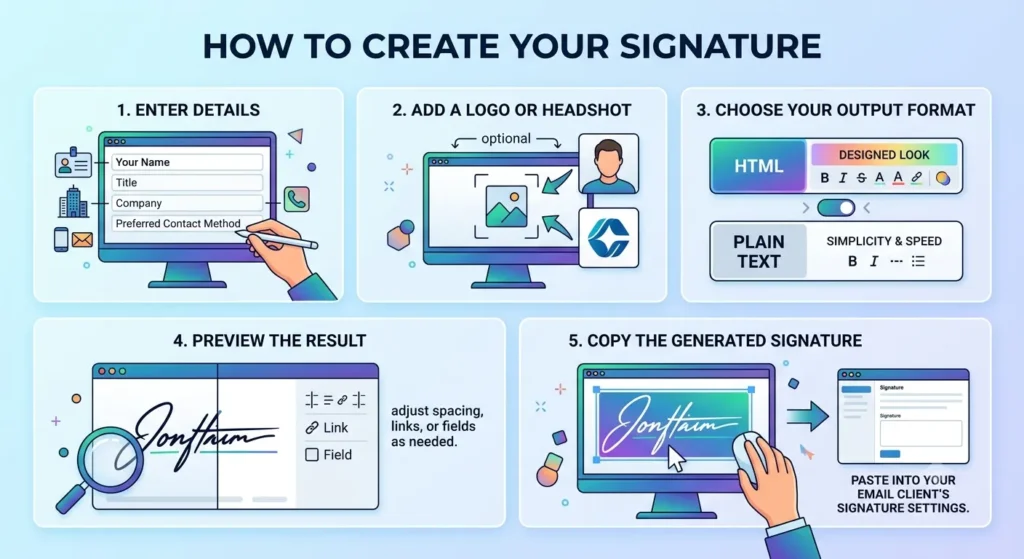
How to Create Your Signature
Visit Our Email signature generator tool
- Enter your name, title, company, and preferred contact method.
- Add a logo or headshot if you want a visual element (optional).
- Choose your output format: HTML for a designed look, or plain text for simplicity and speed.
- Preview the result and adjust spacing, links, or fields as needed.
- Copy the generated signature and paste it into your email client’s signature settings.
The whole process typically takes under two minutes once your details are ready.
What This Tool Does
It is a tool that turns your contact details into a formatted block you can attach to outgoing emails. Instead of manually aligning text, resizing a logo, or writing HTML by hand, you enter your information into a form and the tool produces the finished result. Most generators let you export the signature as HTML for a designed look, or as plain text for a simpler, faster loading option. Our tool supports both, so you are not locked into one format.
What Should Your Email Signature Include?
At minimum, a signature needs enough information for someone to know who sent the email and how to respond.
| Field | Purpose |
|---|---|
| Full name | Identifies the sender |
| Job title | Gives context for the message |
| Company name | Confirms who you represent |
| Phone number or email | Gives a direct way to reach you |
| Logo or headshot (optional) | Reinforces brand or personal identity |
| Social links (optional) | Useful for networking or sales roles |
Keep the list short. A signature crowded with quotes, banners, and five social icons looks cluttered and slows down every email you send.
Plain Text vs HTML: Which Do You Need?
This is the decision most people actually get stuck on, so it deserves a direct answer.
Plain text is a simple line of text with no images, colors, or clickable formatting beyond a basic link. It loads instantly, never breaks across email clients, and is the safer choice for cold outreach or high volume sending, since image heavy signatures can raise spam filter flags on new or unfamiliar domains.
HTML allows a logo, brand colors, clickable social icons, and a structured layout. It looks more professional for client facing communication and day to day business email, but it depends on the recipient’s email client rendering it correctly.
A simple rule: use plain text for cold email and high volume outreach, and use HTML for regular business correspondence where branding matters. Our generator can produce either output directly, so you can switch depending on the email you are sending.
Free vs Paid: What’s the Real Difference?
Free tools typically give you one signature, a set of templates, and basic export in HTML or plain text. That covers the needs of most individuals, freelancers, and small business owners completely.
Paid tools add things that matter mostly at the team level: centrally managing signatures across an entire company, tracking banner clicks, enforcing consistent branding across dozens of employees, and bulk deployment to everyone’s email client at once. If you are creating a signature for yourself, a free generator is rarely a limitation. Paid plans start to make sense once you are managing signatures for a team rather than a single inbox.
Email Signature Example
A professional email signature gives recipients the information they need without making the email look cluttered. Here’s a simple example:
John Smith
Marketing Manager
Business Voozon

Email: john@businessvoozon.com
Phone: +1 (214) 555-0182
Website: https://businessvoozon.com

LinkedIn | X (Twitter)
This format works well for most professionals, freelancers, and small businesses. Add your company logo or social profiles only if they provide value. A clean, easy-to-read signature is usually more effective than one filled with unnecessary graphics or links.
Email Signature Best Practices
A well-designed email signature should be clear, easy to read, and consistent with your professional identity. These simple practices help you create a signature that looks good across different email clients.
Keep It Simple
Include only the details people are likely to use, such as your name, job title, company, and contact information. Too many links, images, or promotional banners can make the signature look crowded.
Use Business Contact Details
Make sure your phone number, email address, and website are accurate and up to date. Incorrect contact information can make it difficult for people to reach you.
Use Small, Optimized Images
If you include a company logo or profile photo, keep the file size small. Large images can load slowly or fail to display in some email clients.
Check the Signature on Different Devices
Preview your signature in Gmail, Outlook, Apple Mail, and on a mobile phone before using it. This helps you spot spacing or formatting issues that may not appear on your own device.
Keep Your Branding Consistent
If you use a logo, brand colors, or company fonts, use the same style across all business communications. Consistent branding helps your emails look more professional and recognizable.
Professional, Business, Personal & Corporate Signatures: What’s the Difference?
These terms overlap, but each implies a slightly different emphasis.
- Professional signature is the general term for any signature suited to work communication. It applies to freelancers, employees, and business owners alike.
- Business signature usually refers to a signature tied to a specific company, often including the company name, address, and sometimes a logo.
- Personal signature is used for individual, less formal contexts. It might skip the company name entirely and focus on your name, role, and one contact method.
- Corporate signature implies standardization across a whole organization, where every employee uses the same layout, colors, and required fields for brand consistency.
In practice, the fields you include matter more than the label. A freelancer’s “professional” signature and a small business owner’s “business” signature often look identical.
Common Mistakes to Avoid
- Adding too many elements. Multiple social icons, a banner, and a quote in one signature looks cluttered rather than polished.
- Using a large, unoptimized image. Oversized logos slow load times and can get blocked by some email clients.
- Skipping a mobile check. A signature that looks fine on desktop can wrap awkwardly on a phone screen.
- Choosing HTML for cold outreach. Image heavy signatures increase spam risk when sending to people who have never received an email from you before.
- Forgetting to test across clients. A signature that renders correctly in Gmail does not always look the same in Outlook.
Conclusion
The right signature format depends on how and to whom you’re sending email, not on which option looks fancier. Our Email Signature Generator lets you build either a plain text or HTML signature in minutes, so you can match the format to the message instead of settling for one default.
FAQs
What is an email signature generator?
It is a tool that formats your name, title, contact details, and optional branding into a ready to use email signature, exported as HTML or plain text.
What should an email signature include?
At minimum: your name, job title, company name, and one way to contact you. Logos and social links are optional additions.
Is a free signature tool good enough?
For most individuals, yes. Free tools cover the essentials completely. Paid tools mainly add team management and analytics features that individuals rarely need.
Do I need HTML for a professional email signature?
Not always. HTML looks more polished for regular business email, but plain text is often the better and safer choice for cold outreach or high volume sending.
Will my signature work on Gmail, Outlook, and mobile?
A well built HTML signature generally works across major clients, but layouts can render slightly differently. It’s worth previewing on mobile before rolling a signature out widely.