Creating an invoice is one of the most important parts of getting paid for your work. Whether you want to create invoices for a small business, bill freelance clients, or request payment for products and services, a professional invoice helps you communicate payment details clearly.
If you’re wondering how to create invoices, how to write an invoice, or how to create free invoices without using complicated software, this guide walks you through the complete process. You’ll also learn how to create an invoice online with all the essential details your clients expect.
If you want to save time, you can use an Invoice Generator to create a professional invoice in minutes without formatting everything manually.
Table of Contents
What Is an Invoice?
An invoice is a document that a business sends to a customer to request payment for products or services. It records what was sold, how much the customer needs to pay, and when the payment is due.
A professional invoice also helps businesses:
- Keep payment records organized
- Track unpaid invoices
- Reduce billing mistakes
- Maintain accurate financial records
Businesses of all sizes use invoices, including freelancers, agencies, consultants, contractors, online stores, and service providers.
What Should an Invoice Include?
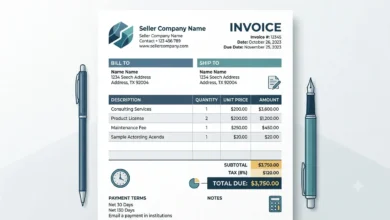
A complete invoice should contain all the information your client needs before making a payment.
| Invoice Element | Why It Is Important |
|---|---|
| Invoice Number | Helps identify and track each invoice |
| Invoice Date | Shows when the invoice was created |
| Due Date | Lets the client know when payment is expected |
| Business Details | Identifies who issued the invoice |
| Client Details | Identifies who should make the payment |
| Products or Services | Explains what the client is paying for |
| Quantity | Shows the number of items or hours |
| Price | Displays the agreed rate |
| Tax | Shows applicable tax separately |
| Total Amount | Displays the final amount due |
| Payment Terms | Explains when and how payment should be made |
Including these details reduces confusion and makes your invoice look more professional.
How to Create an Invoice
Whether you need to create an invoice online for a one-time project or recurring work, the process remains the same. A professional invoice should include accurate business information, client details, products or services, pricing, taxes (if applicable), and payment terms before you send it to your client.
Creating an invoice is simple when you follow the same process every time.
Step 1: Add Your Business Details
Start by entering your business information at the top of the invoice.
Include:
- Business name
- Business address
- Email address
- Phone number
- Website (optional)
This helps the client identify who issued the invoice.
If you want to create professional business invoices, always use your official business name and accurate contact information. This helps clients verify your business and gives every invoice a more professional appearance.
Step 2: Enter Client Information
Add the details of the customer receiving the invoice.
Include:
- Client name
- Company name
- Billing address
- Email address
Double-check the information before sending the invoice to avoid delays.
Step 3: Add Products or Services
List every product or service separately.
Instead of writing:
- Consulting
Write:
- Marketing Consultation (3 Hours)
- Website Maintenance for July
- Logo Design Package
Clear descriptions help clients understand exactly what they are paying for.
Step 4: Add Prices and Taxes
Enter the quantity, unit price, and any applicable tax.
For example:
| Description | Quantity | Price | Total |
|---|---|---|---|
| Website Design | 1 | $800 | $800 |
| Monthly Hosting | 1 | $50 | $50 |
Subtotal: $850
Tax: $85
Total Due: $935
Always review your calculations before sending the invoice.
Step 5: Review and Send the Invoice
Before sending your invoice, make sure every detail is correct.
Check that:
- The invoice number is unique.
- Client information is accurate.
- Products or services are listed correctly.
- Prices and totals are correct.
- Payment terms are included.
Once everything looks correct, download the invoice as a PDF and send it to your client by email or through your preferred communication method.
Invoice Example
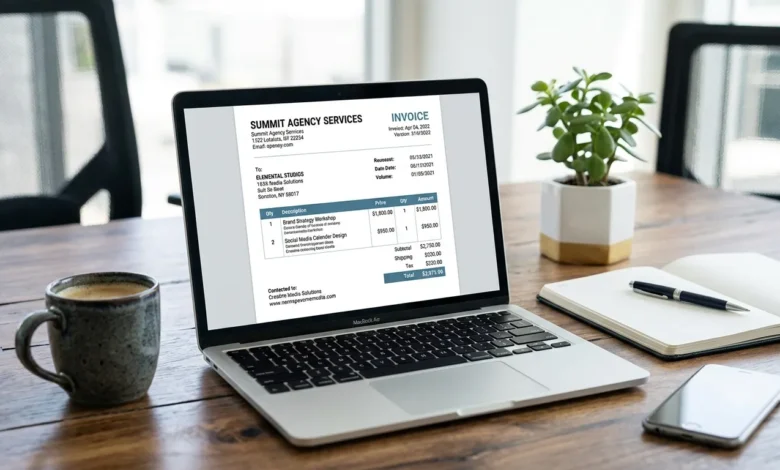
Seeing an example makes it easier to understand how a professional invoice should look. While every business may use a different layout, the information included is generally the same.
| Invoice | |
|---|---|
| Invoice Number | INV-1001 |
| Invoice Date | July 31, 2026 |
| Due Date | August 14, 2026 |
From
Business ABC
123 Business Street
contact@businessabc.com
Bill To
John Smith
XYZ Company
john@xyzcompany.com
| Description | Qty | Rate | Total |
|---|---|---|---|
| Website Design | 1 | $800 | $800 |
| Monthly Hosting | 1 | $50 | $50 |
Subtotal: $850
Tax: $85
Total Due: $935
Payment Terms: Net 14
This example shows a clean and organized invoice that provides all the information a client needs before making a payment.
Common Mistakes When Creating an Invoice
Even a small mistake can delay payment or require you to issue a new invoice. Reviewing your invoice before sending it helps avoid these problems.
Using Duplicate Invoice Numbers
Each invoice should have a unique invoice number. This makes it easier to track payments, find previous invoices, and maintain organized financial records.
Incorrect Client Information
Always verify the client’s name, company details, billing address, and email address. Incorrect information may cause delays or send the invoice to the wrong person.
Vague Product or Service Descriptions
Avoid general descriptions like:
- Design Work
- Consulting
- Development
Instead, describe the completed work clearly.
For example:
- Landing Page Design
- SEO Audit for 20 Pages
- Monthly Website Maintenance
- Content Writing (5 Articles)
Specific descriptions reduce confusion and help clients approve invoices more quickly.
Missing Payment Terms
If you do not specify when payment is due, clients may not know your expected payment timeline.
Include clear payment terms such as:
- Due on Receipt
- Net 7
- Net 15
- Net 30
Calculation Errors
Review every quantity, rate, tax amount, discount, and total before sending the invoice. Even a minor calculation mistake can create unnecessary follow-up and delay payment.
Conclusion
Now that you know how to create an invoice, you can prepare professional invoices with confidence. Include complete business and client information, list your products or services clearly, review your totals, and send the invoice as soon as the work is complete.
If you want to create an invoice online without manual formatting, use the Invoice Generator to prepare accurate invoices for your clients in just a few minutes.
FAQs
How do I create an invoice?
Create an invoice by adding your business information, client details, products or services, pricing, payment terms, and a unique invoice number. Review the invoice before sending it to your client.
What should an invoice include?
A complete invoice should include the invoice number, invoice date, due date, business information, client information, products or services, pricing, tax (if applicable), total amount, and payment terms.
Can I create an invoice for free?
Yes. You can use an Invoice Generator to create a professional invoice online without designing one from scratch.
How do I send an invoice to a client?
Most businesses send invoices by email as a PDF attachment. You can also share invoices through your preferred billing or accounting system.
Can I download an invoice as a PDF?
Yes. After creating your invoice, you can download it as a PDF for printing, emailing, or keeping as part of your business records.